
Footer & store features
Wishlist & product comparison
Choose a supported wishlist or compare mode and connect its page and entry points.
Set it up
- Open General product and choose the wishlist and compare modes available in your release.
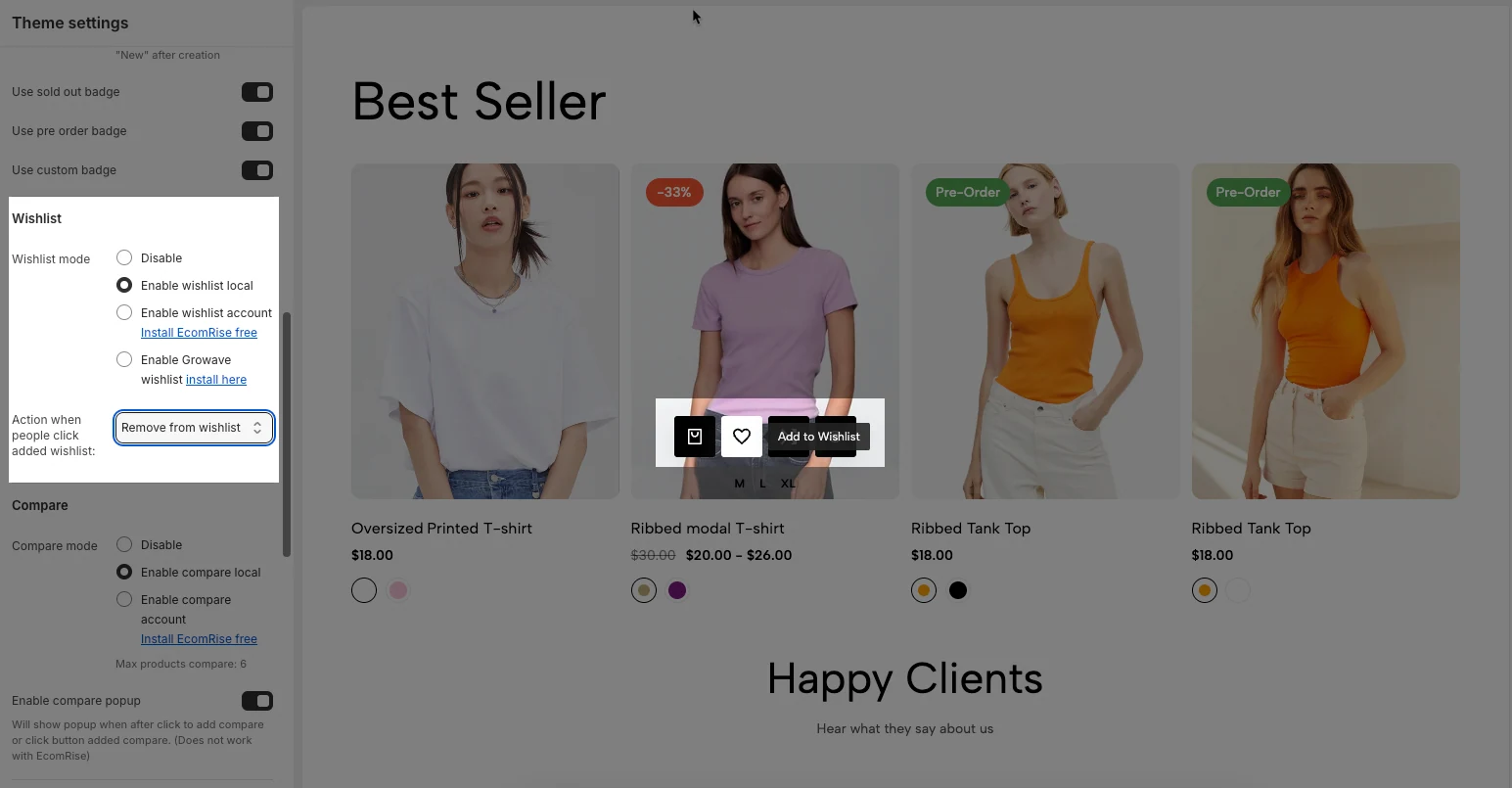
Reference 1. Choose the wishlist mode available in the theme.The4 reference screenshot · Controls and branding may differ in your Zayra release. Select the image to view full size. - Use the local theme mode when you want the built-in browser-based experience. An account-based mode needs its supported app and configuration.
- Configure the available added-item actions and compare popup behavior.
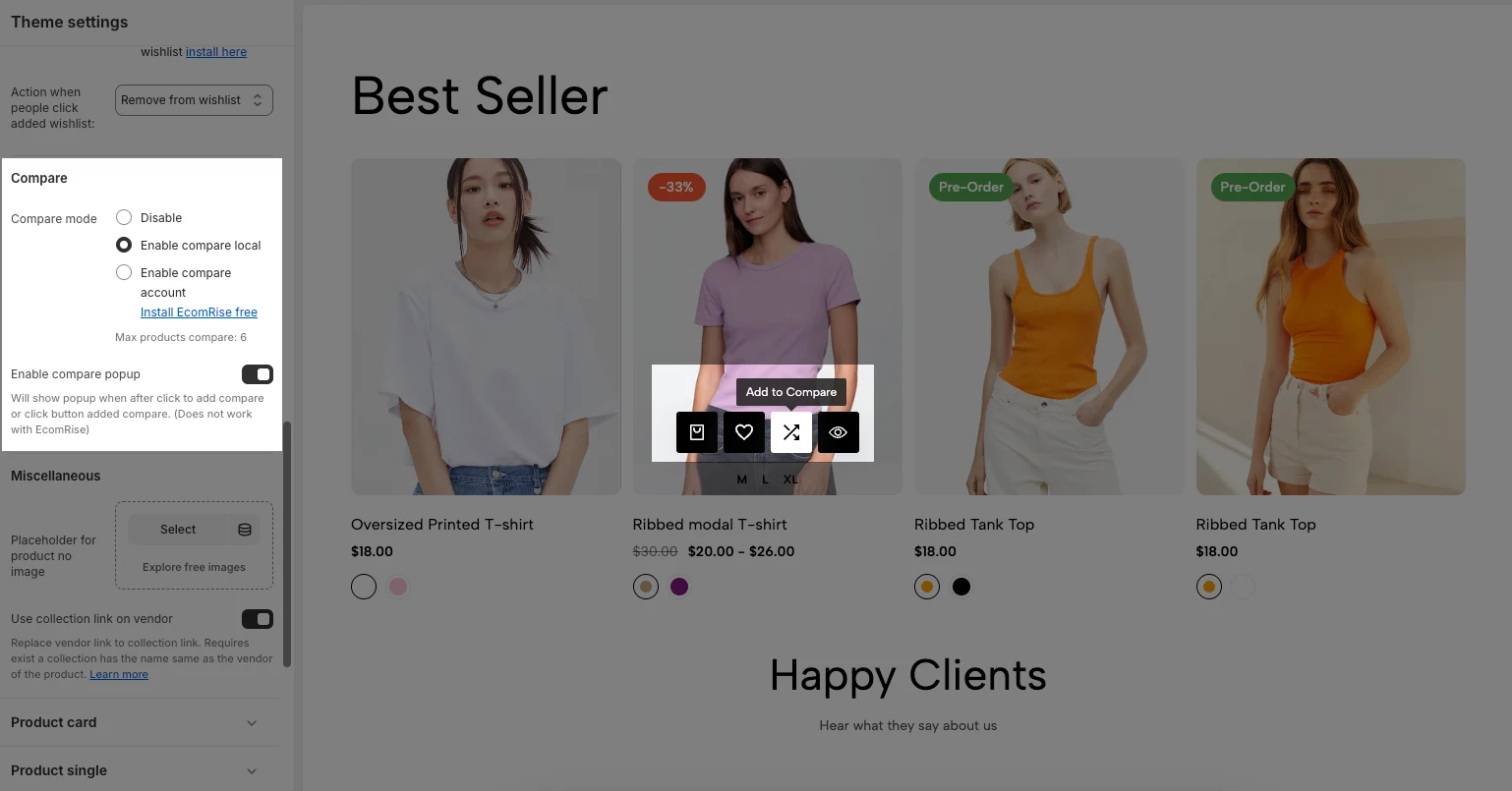
Reference 2. Review the compare settings and popup behavior.The4 reference screenshot · Controls and branding may differ in your Zayra release. Select the image to view full size. - Enable the matching header or product-card entry points and confirm the destinations.
- Save, add and remove products, then open the wishlist and compare views.
Check your storefront
- Local lists are browser-specific and may be lost when browser storage is cleared. They are not a promise of account synchronization.
- The package uses search-based wishlist and compare templates. Check the actual theme links rather than creating arbitrary page URLs.
- If choosing an app mode, verify that app’s current capabilities and plan separately.
Editor controls
Expand a group to see the controls in Zayra 5.4.3. Some options appear only after selecting a related mode or enabling a feature.
Wishlist page22 controls
- Products test
- Select the products to display.
- Enable number of columns selector
- Turn this option on or off.
- Product design
- Options: 1 · 2 · 3 · 4 · 5 · 6 · 7 · 8 · 9 · 10
- Image ratio
- Options: Adapt to image · Square · Portrait · ASOS · Landscape · Custom
- Full image
- Turn this option on or off.
- Show vendor
- Turn this option on or off.
- Show type
- Turn this option on or off.
- Products border
- Options: None · In image · On items · On grid
- Maximum items to show
- Choose a value from 1 to 50, in steps of 1.
- Items per row (Desktop)
- Options: 2 · 3 · 4 · 5 · 6
- Items per row (Tablet)
- Options: 1 · 2 · 3 · 4
- Items per row (Mobile)
- Options: 1 · 2
- Spacing between items
- Options: Default · 0 · 5px · 10px · 15px · 20px
- Pagination
- Options: Links · Load more button · Infinit scrolling
- Pagination position
- Options: Left · Center · Right
- Distance from pagination to items
- Choose a value from 0 to 100, in steps of 1.
- Make section full width
- Turn this option on or off.
- Colors schema
- Choose a color scheme configured in Theme settings / Colors.
- Margin
- Enter the text for this field.
- Margin (Mobile)
- Enter the text for this field.
Shown when its related setting is enabled or selected.
- Padding
- Enter the text for this field.
- Padding (Mobile)
- Enter the text for this field.
Shown when its related setting is enabled or selected.
Compare page8 controls
- Products test
- Select the products to display.
- Image ratio
- Options: Adapt to image · Square · Portrait · ASOS · Landscape · Custom
- Full image
- Turn this option on or off.
- Colors schema
- Choose a color scheme configured in Theme settings / Colors.
- Margin
- Enter the text for this field.
- Margin (Mobile)
- Enter the text for this field.
Shown when its related setting is enabled or selected.
- Padding
- Enter the text for this field.
- Padding (Mobile)
- Enter the text for this field.
Shown when its related setting is enabled or selected.
Need a hand with your store?
Contact Inspired Marketing