
Product pages
Product images, videos & media
Configure media layouts, thumbnails, and the product gallery using your actual product media.
Set it up
- Upload and order your product media in Shopify admin. Assign variant images where needed.
- Open the product template and find the Medias block inside Main product.
- Choose Desktop media layout and the available thumbnail, sizing, zoom, or popup options.
- Review the mobile gallery separately and keep product detail clear at narrow widths.
- Save and test image switching, video playback, thumbnail navigation, and any model viewer on a real device.
Reference 1. Preview the product gallery’s image popup.The4 reference screenshot · Controls and branding may differ in your Zayra release. Select the image to view full size.
If something looks wrong
- An empty gallery needs media on the selected product.
- If selecting a variant changes the wrong image, check that product’s variant-image assignments.
- A 3D or video feature needs a compatible media resource. A layout setting alone does not create the asset.
Editor controls
Expand a group to see the controls in Zayra 5.4.3. Some options appear only after selecting a related mode or enabling a feature.
Product group media1 controls
- Choose a product
- Select a product from your store.
Medias block21 controls
- Media size
- Choose a value from 25 to 75 %, in steps of 1.
- Desktop media layout
- Options: Stacked · 1 column · 2 columns · Thumbnail carousel (bottom) · Thumbnail carousel (left) · Thumbnail carousel (right) · Without thumbnails
- Thumbnail left/right size
- Options: Small · Medium · Large
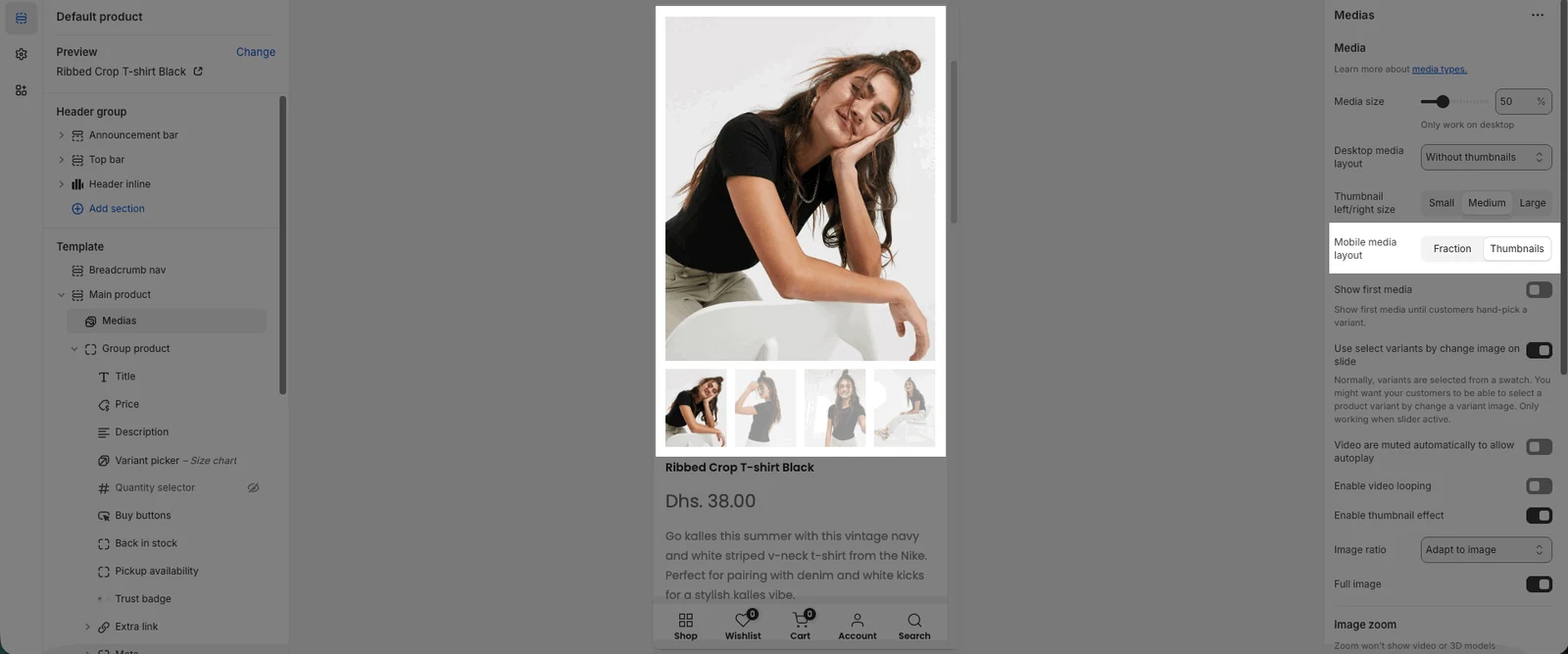
- Mobile media layout
- Options: Fraction · Thumbnails
- Show first media
- Turn this option on or off.
- Use select variants by change image on slide
- Turn this option on or off.
- Video are muted automatically to allow autoplay
- Turn this option on or off.
- Enable video looping
- Turn this option on or off.
- Enable thumbnail effect
- Turn this option on or off.
- Image ratio
- Options: Adapt to image · Square · Portrait · ASOS · Landscape · Custom
- Full image
- Turn this option on or off.
- Image zoom
- Options: Hover zoom · Click open lightbox · No zoom · Hover zoom and click open lightbox
- Enable lightbox icon
- Turn this option on or off.
Shown when its related setting is enabled or selected.
- Image hover zoom type
- Options: Inner · Magnifier · External
- Zoom level of zoom hover
- Choose a value from 1.5 to 4 x, in steps of 0.5.
- Max zoom level of lightbox
- Choose a value from 1 to 4 x, in steps of 0.5.
- Prev / Next button
- Turn this option on or off.
- Navigation style
- Options: Default · Outline · Simple
Shown when its related setting is enabled or selected.
- Shape
- Options: Default · Rounded · Rotate
Shown when its related setting is enabled or selected.
- Size
- Options: Small · Medium · Large
Shown when its related setting is enabled or selected.
- Hide on mobile
- Turn this option on or off.
Shown when its related setting is enabled or selected.
Need a hand with your store?
Contact Inspired Marketing