
Theme settings
General product settings & badges
Configure shared price presentation, badges, wishlist, and comparison modes.
Set it up
- Open General product in Theme settings.
- Choose price presentation and the badge styles you want to show.
- Set sale, new, sold-out, pre-order, or custom-badge behavior where available.
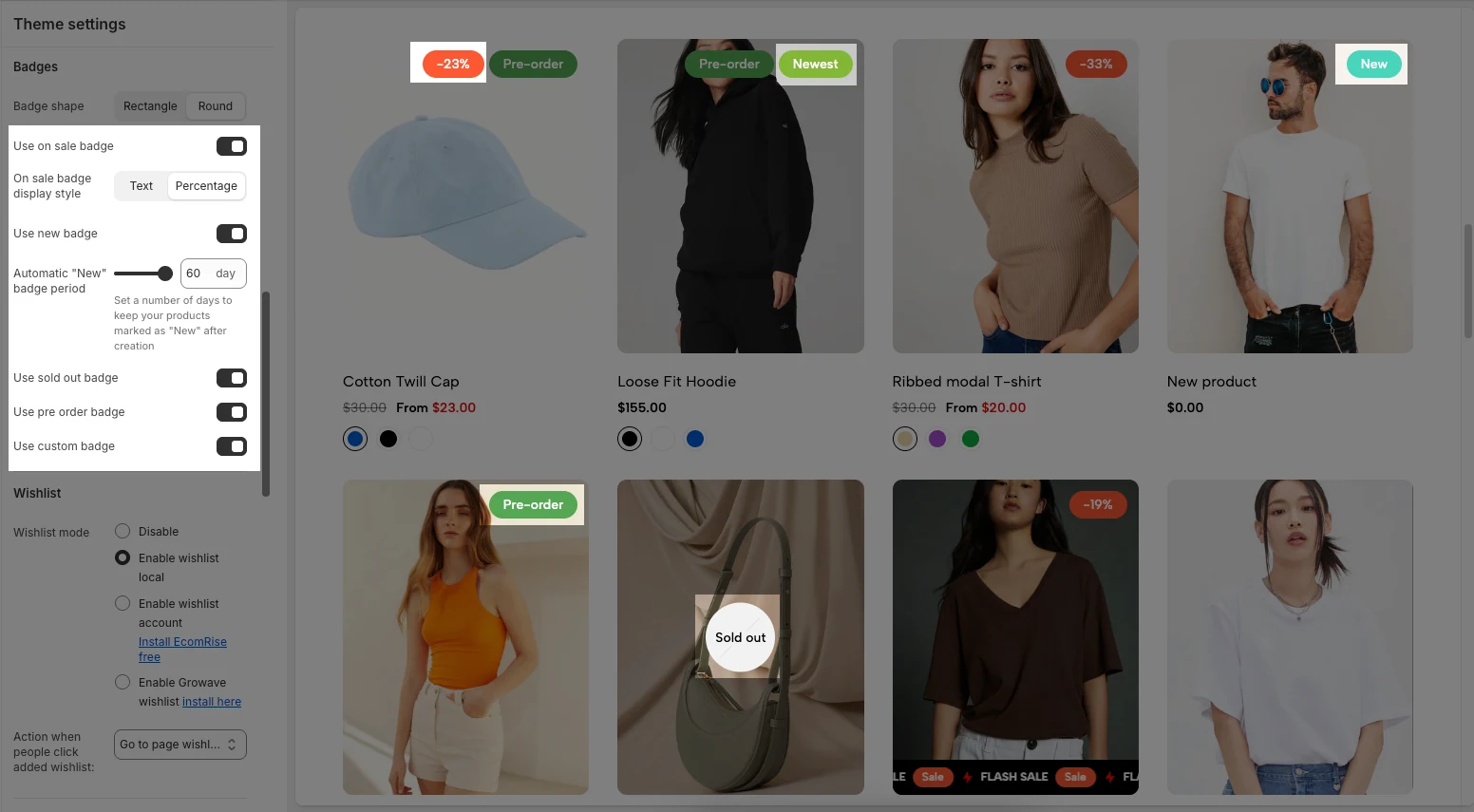
Reference 1. Configure the product badge presentation.The4 reference screenshot · Controls and branding may differ in your Zayra release. Select the image to view full size. - Select the supported wishlist and compare modes, then save and preview several product states.
Check your storefront
- A sale badge needs a qualifying price configuration; a pre-order label does not set an inventory policy.
- Verify the exact custom-badge source and required product data before using it.
- Use the Wishlist & product comparison guide for mode-specific requirements.
Editor controls
Expand a group to see the controls in Zayra 5.4.3. Some options appear only after selecting a related mode or enabling a feature.
Theme settings / General product16 controls
- Price varies style
- Options: $39.00 – $59.00 · From $39.00
- Badge shape
- Options: Rectangle · Circle · Round · Pill
- Use on sale badge
- Turn this option on or off.
- Label on sale style
- Options: Text · Percentage
- Use new badge
- Turn this option on or off.
- Automatic "New" badge period
- Choose a value from 1 to 60 t:settings_schema.products.settings.badges.new_badge.unit, in steps of 1.
- Use sold out badge
- Turn this option on or off.
- Use pre order badge
- Turn this option on or off.
- Use custom badge
- Turn this option on or off.
- Wishlist mode
- Options: Disable · Enable wishlist local · Enable wishlist account [Install Nitro: Upsell & Cross-sell free](https://apps.shopify.com/ecomrise?utm_source=ecomus-intheme&utm_medium=wishlist&compare)
- Action when people click added wishlist:
- Options: Go to page wishlist · Remove from wishlist
Shown when its related setting is enabled or selected.
- Compare mode
- Options: Disable · Enable compare local · Enable compare account [Install Nitro: Upsell & Cross-sell free](https://apps.shopify.com/ecomrise?utm_source=ecomus-intheme&utm_medium=compare&compare)
- Enable compare popup
- Turn this option on or off.
Shown when its related setting is enabled or selected.
- Placeholder for product no image
- Choose an image from your store’s files.
- Use collection link on vendor
- Turn this option on or off.
- Use collection link on type
- Turn this option on or off.
Need a hand with your store?
Contact Inspired Marketing