
Product pages
Variant pickers & color swatches
Present size and color choices and control how available variants are selected.
Set it up
- Create the product options and variants in Shopify admin and set prices, inventory, and images.
- Open the product template and select the Variant picker block.
- Choose Color selector type and Other variants selector type from the available styles. Adjust selector sizing as needed.
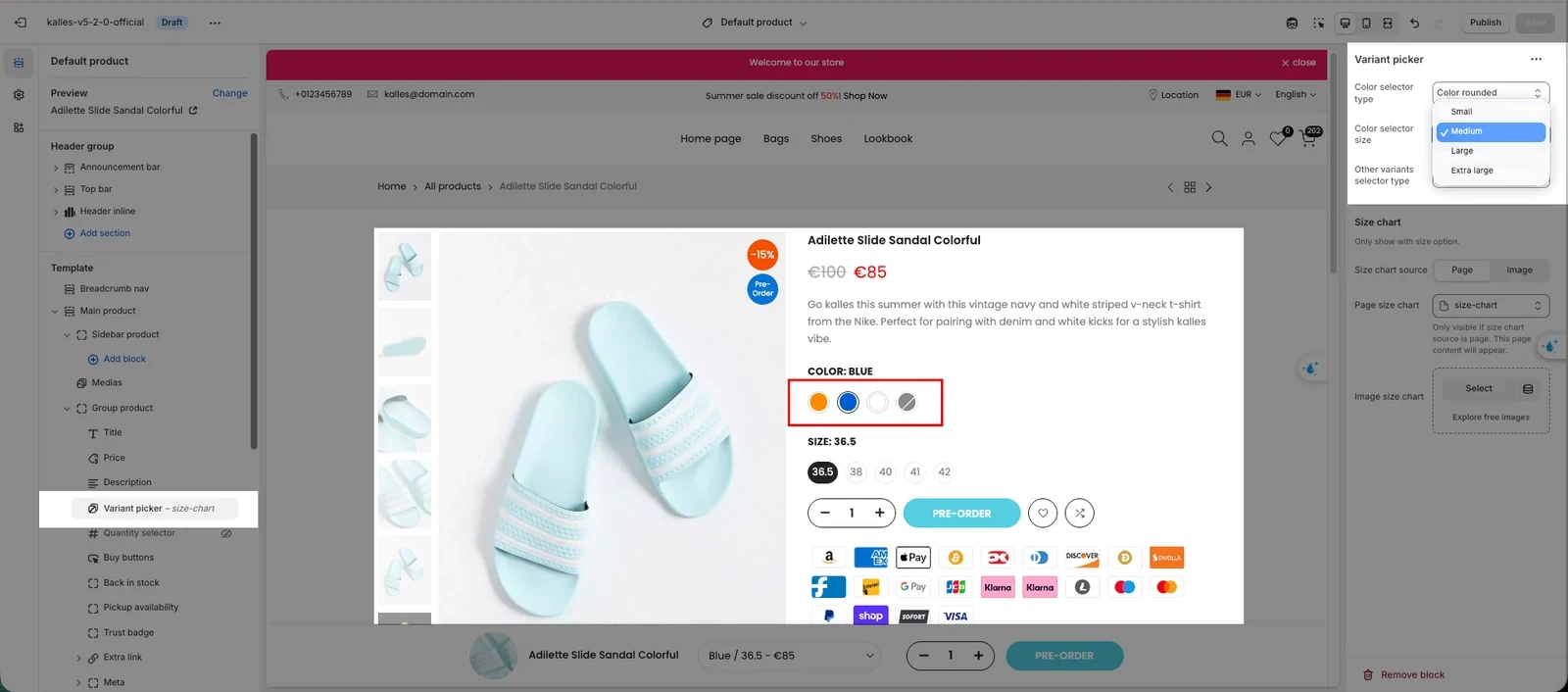
Reference 1. Choose the presentation of product variant selectors.The4 reference screenshot · Controls and branding may differ in your Zayra release. Select the image to view full size. - Open Theme settings / Product single to choose the initial pick mode and sold-out variant behavior.
- Save and test all combinations, including an unavailable combination and a deep link to a specific variant.
If something looks wrong
- The picker can only display variants that exist on the product.
- A swatch that lacks the expected color may need matching option naming or a supported image/color source in your configuration.
- Hiding sold-out variants changes presentation; it does not change inventory or make a product purchasable.
Editor controls
Expand a group to see the controls in Zayra 5.4.3. Some options appear only after selecting a related mode or enabling a feature.
Theme settings / Product single5 controls
- Pick mode
- Options: No pick · Pick first variant · Pick first available variant
- Enable history state
- Turn this option on or off.
Shown when its related setting is enabled or selected.
- Hide sold out variants
- Turn this option on or off.
- Auto pick nearest available variant
- Turn this option on or off.
- Show phone in ask a question modal
- Turn this option on or off.
Variant picker block6 controls
- Color selector type
- Options: Rounded · Radio · Radio full · Block · Block with color · Color · Color rounded · Dropdown · Dropdown with color · Image · Image rounded
- Color selector size
- Options: Small · Medium · Large · Extra Large
Shown when its related setting is enabled or selected.
- Other variants selector type
- Options: Circle · Radio · Radio full · Block · Dropdown
- Size chart source
- Options: Page · Image
- Page size chart
- Select a page from your store.
- Image size chart
- Choose an image from your store’s files.
Need a hand with your store?
Contact Inspired Marketing