
Footer & store features
Predictive search & search results
Configure search suggestions and test the search journey with your catalogue.
Set it up
- Open Search behavior and choose whether to enable search suggestions.
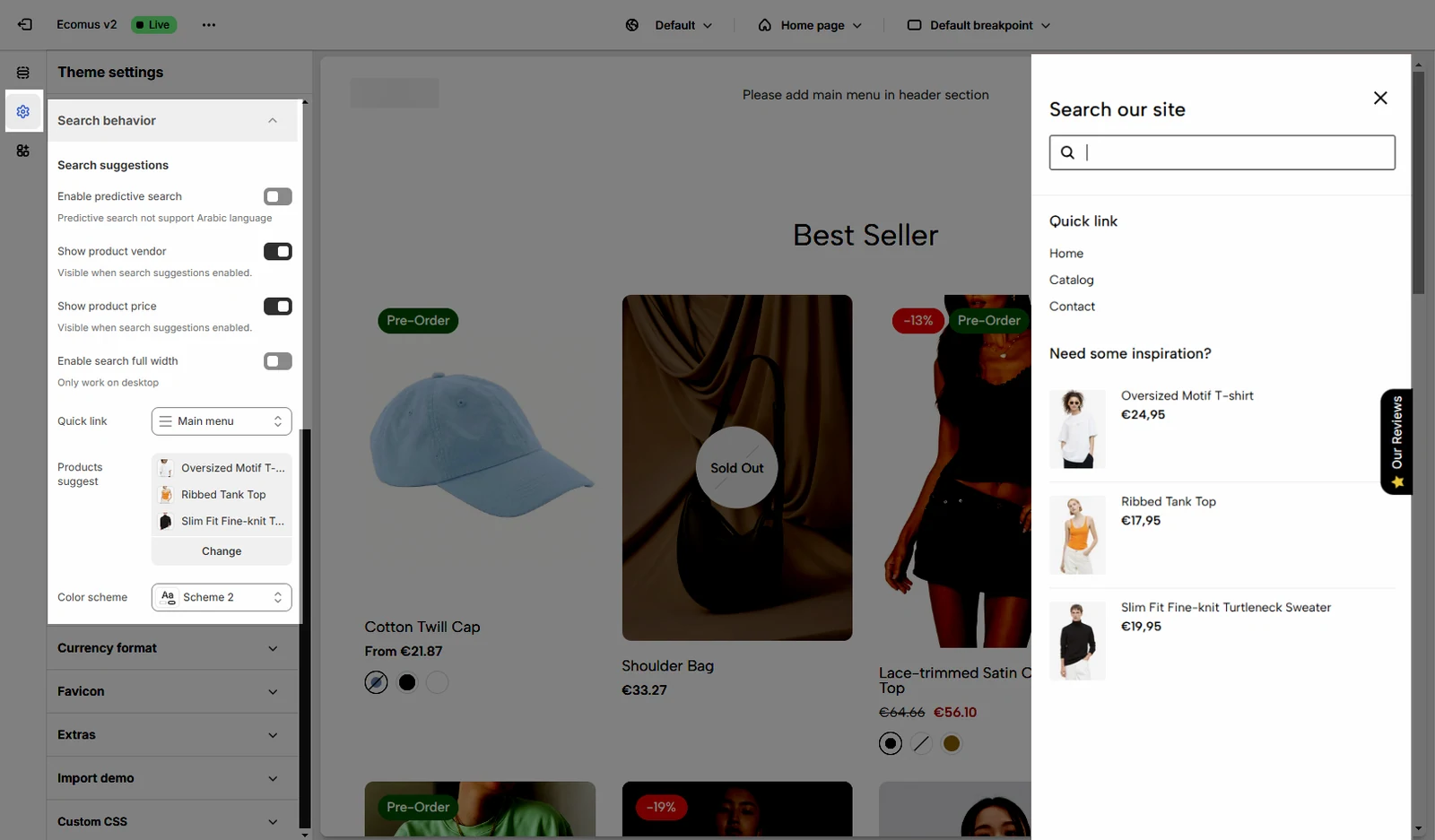
Reference 1. Open the search behavior settings.The4 reference screenshot · Controls and branding may differ in your Zayra release. Select the image to view full size. - Configure the available product-type, vendor, and suggestion controls.
- Open the search results template and adjust its available layout and filtering settings.
- Save and search for a product title, a partial term, and a term with no results.
- Check keyboard selection, mobile search, and the full results page.
If something looks wrong
- Search depends on products and other resources being available to the Online Store.
- Search suggestions and full search results can use different presentation settings.
- Use Shopify Search & Discovery for supported search and merchandising controls rather than adding fake matches in the theme.
Editor controls
Expand a group to see the controls in Zayra 5.4.3. Some options appear only after selecting a related mode or enabling a feature.
Theme settings / Search behavior10 controls
- Enable search suggestions
- Turn this option on or off.
- Search by product type
- Turn this option on or off.
- Show product vendor
- Turn this option on or off.
- Show product price
- Turn this option on or off.
- Enable search full width
- Turn this option on or off.
- Product design
- Options: 1 · 2 · 3 · 4 · 5 · 6 · 7 · 8 · 9 · 10
Shown when its related setting is enabled or selected.
- Logo search full
- Choose an image from your store’s files.
- Search hot key
- Enter the content for this field.
- Products suggest
- Select the products to display.
- Colors schema
- Choose a color scheme configured in Theme settings / Colors.
Search page24 controls
- Product design
- Options: 1 · 2 · 3 · 4 · 5 · 6 · 7 · 8 · 9 · 10 · 13 · 14 · 15
- Image ratio
- Options: Adapt to image · Square · Portrait · ASOS · Landscape · Custom
- Full image
- Turn this option on or off.
- Show vendor
- Turn this option on or off.
- Show type
- Turn this option on or off.
- Products border
- Options: None · In image · On items · On grid
- Maximum items to show
- Choose a value from 1 to 50, in steps of 1.
- Items per row (Desktop)
- Options: 2 · 3 · 4 · 5 · 6
- Items per row (Tablet)
- Options: 2 · 3 · 4
- Items per row (Mobile)
- Options: 1 · 2
- Spacing between items
- Options: Default · 0 · 5px · 10px · 15px · 20px
- Type
- Options: Links · Load more button · Infinite scrolling
- Pagination position
- Options: Left · Center · Right
- Distance from pagination to items
- Choose a value from 0 to 100, in steps of 1.
- Enable sorting
- Turn this option on or off.
- Enable filtering
- Turn this option on or off.
- Filter price behavior
- Options: Auto update when change price · When user click button filter price
- Enable number of columns selector
- Turn this option on or off.
- Make section full width
- Turn this option on or off.
- Colors schema
- Choose a color scheme configured in Theme settings / Colors.
- Margin
- Enter the text for this field.
- Margin (Mobile)
- Enter the text for this field.
Shown when its related setting is enabled or selected.
- Padding
- Enter the text for this field.
- Padding (Mobile)
- Enter the text for this field.
Shown when its related setting is enabled or selected.
Need a hand with your store?
Contact Inspired Marketing