
Product pages
Size charts, delivery & extra links
Connect useful product information to pages and popup blocks.
Set it up
- Create an accurate size chart or delivery-and-return page in Shopify admin.
- Open the relevant product template and add or select the Size chart or Delivery & Return block.
- Enable the size chart where required and choose its supported source. Select the intended page if you use a page source.
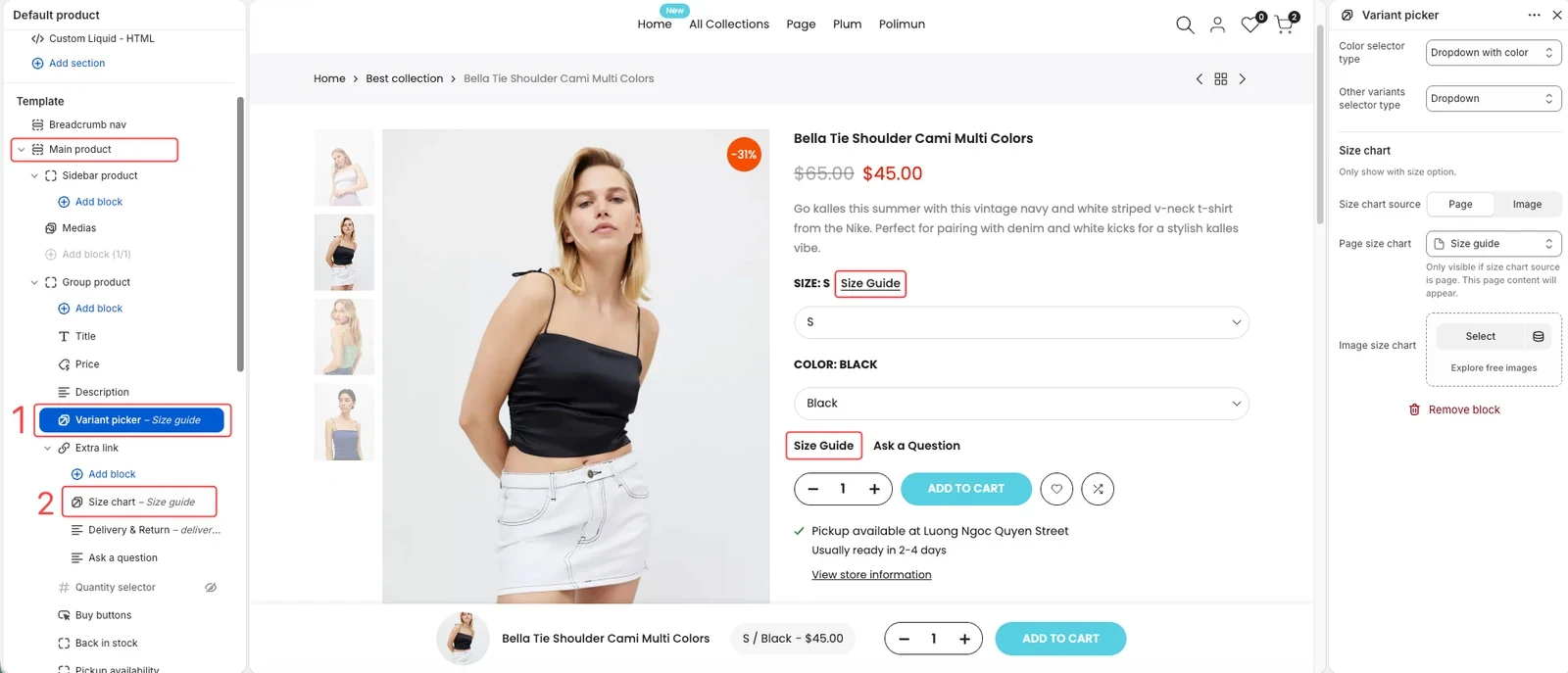
Reference 1. Locate the size-chart links and choose an image or page source.The4 reference screenshot · Controls and branding may differ in your Zayra release. Select the image to view full size. - Connect extra links and popup content to their intended destinations.
- Save and open every popup and link in preview. Use another product to check whether the content should be shared or product-specific.
Check your storefront
- Make sizing units clear and ensure any table is readable on a phone.
- Delivery wording should match the store’s real shipping and returns policies.
- If a chart is missing, check the enable control, selected source, and whether the product uses the template you edited.
Editor controls
Expand a group to see the controls in Zayra 5.4.3. Some options appear only after selecting a related mode or enabling a feature.
Size chart block4 controls
- Use size chart
- Options: None · Only product has option name 'size' · All product
- Size chart source
- Options: Page · Image
- Page size chart
- Select a page from your store.
- Image size chart
- Choose an image from your store’s files.
Shown when its related setting is enabled or selected.
Delivery & Return block1 controls
- Add page delivery & return
- Select a page from your store.
Link popup block2 controls
- Label
- Enter the text for this field.
- Content
- Select a page from your store.
Link custom block3 controls
- Label
- Enter the text for this field.
- Link
- Choose a destination or enter a complete URL.
- Open this link in a new tab
- Turn this option on or off.
Need a hand with your store?
Contact Inspired Marketing