
Footer & store features
Configure the footer
Connect footer menus, contact details, brand content, and mobile accordions.
Set it up
- Prepare footer link lists in Shopify admin, including the real contact and policy pages.
- Open Footer in the footer group and configure the available columns and nested blocks.
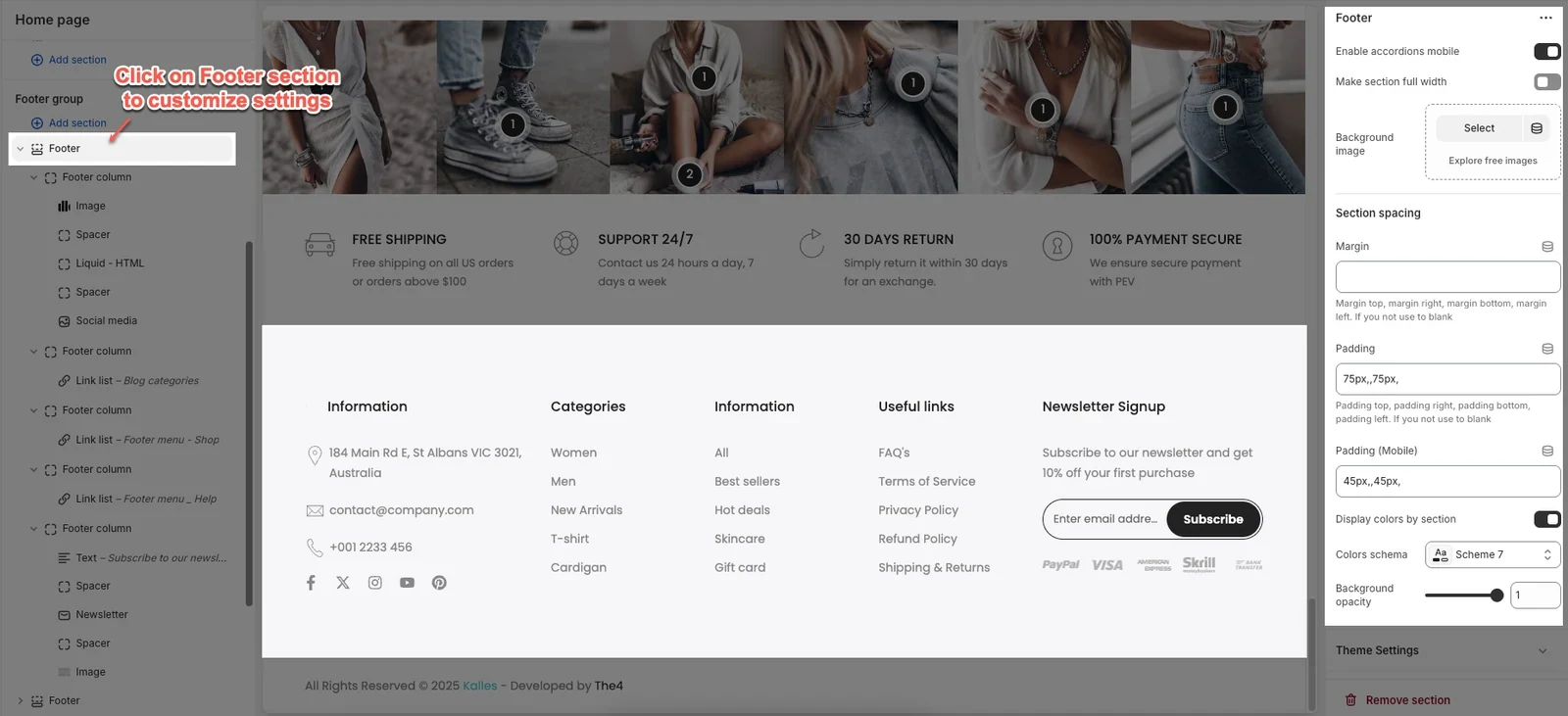
Reference 1. Configure the footer section and its columns.The4 reference screenshot · Controls and branding may differ in your Zayra release. Select the image to view full size. - Select menus and replace demo text, images, social links, and copyright details.
- Set background, spacing, and the Enable accordions mobile option as needed.
- Save and open every footer destination on mobile and desktop.
Check your storefront
- Shared footer changes can affect the whole store.
- Payment icons or claims should match the payment methods actually available at checkout.
- Check that mobile accordion headings can be opened using the keyboard.
Editor controls
Expand a group to see the controls in Zayra 5.4.3. Some options appear only after selecting a related mode or enabling a feature.
Footer10 controls
- Enable accordions mobile
- Turn this option on or off.
- Make section full width
- Turn this option on or off.
- Background image
- Choose an image from your store’s files.
- Margin
- Enter the text for this field.
- Margin (Mobile)
- Enter the text for this field.
Shown when its related setting is enabled or selected.
- Padding
- Enter the text for this field.
- Padding (Mobile)
- Enter the text for this field.
Shown when its related setting is enabled or selected.
- Display colors by section
- Turn this option on or off.
- Colors schema
- Choose a color scheme configured in Theme settings / Colors.
- Background opacity
- Choose a value from 0 to 1, in steps of 0.1.
Need a hand with your store?
Contact Inspired Marketing