
Languages & currencies
Country, language & currency selectors
Connect localization controls to the markets and currencies your Shopify store supports.
Set it up
- Configure the intended countries, markets, languages, and supported payment currencies in Shopify.
- Open Theme settings / Currency format and choose the mode appropriate for your setup.
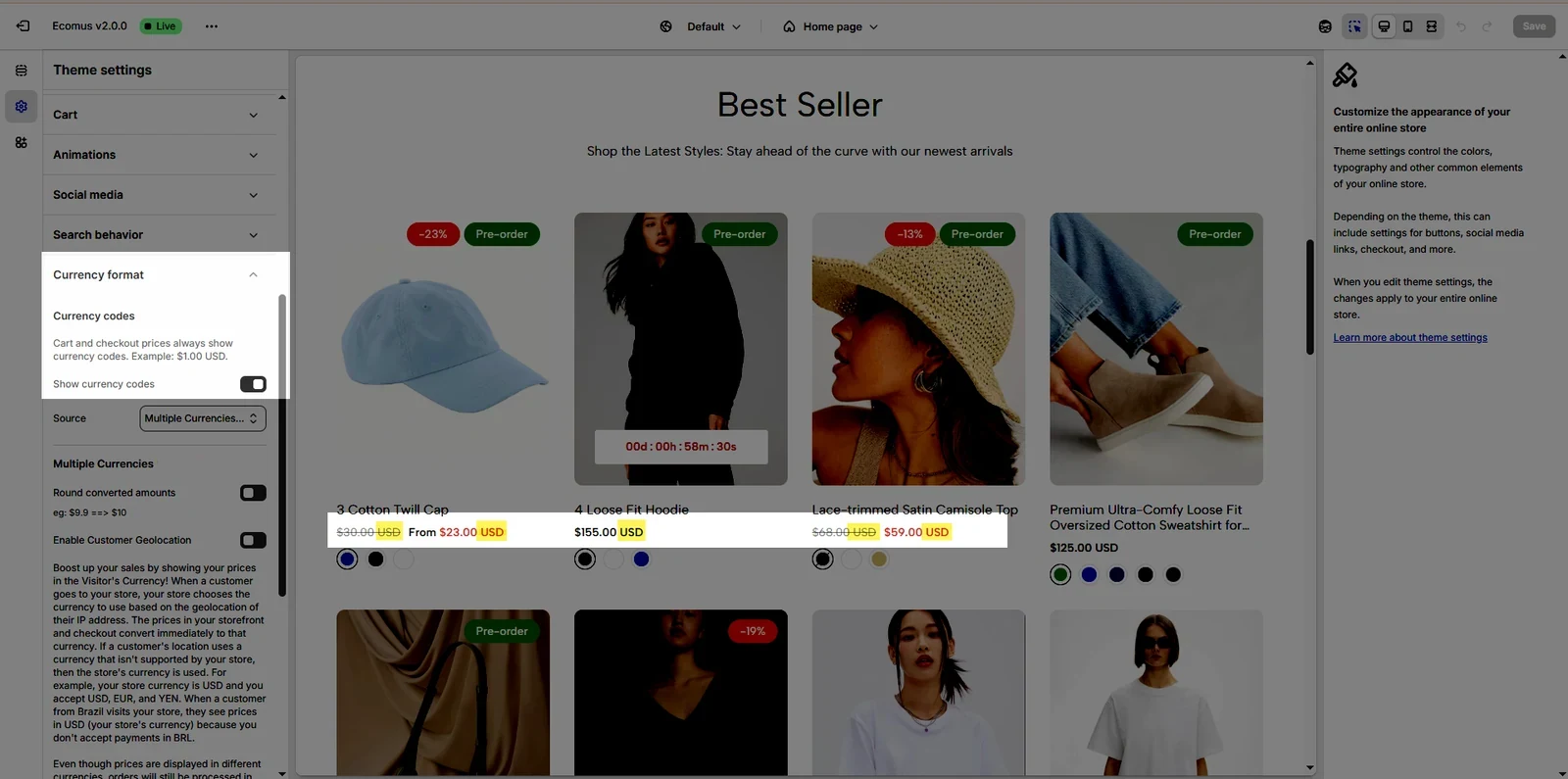
Reference 1. Review currency-format settings for the store.The4 reference screenshot · Controls and branding may differ in your Zayra release. Select the image to view full size. - Configure currency-code and country-flag presentation where available.
- Enable the supported country, language, or currency selector in your header or footer blocks.
- Save and test a market switch, displayed prices, cart totals, and checkout currency.
Check your storefront
- A visual currency conversion option does not guarantee checkout supports that currency.
- Review current Shopify payment and market eligibility for the store before advertising multi-currency checkout.
- Check that localization selectors have clear labels and do not hide needed navigation.
Editor controls
Expand a group to see the controls in Zayra 5.4.3. Some options appear only after selecting a related mode or enabling a feature.
Theme settings / Currency format7 controls
- Multiple Currencies By
- Options: Shopify · Inspired Marketing
- Show currency codes
- Turn this option on or off.
- Show country flag
- Turn this option on or off.
- Flag size
- Options: Small · Medium
- Round converted amounts
- Turn this option on or off.
Shown when its related setting is enabled or selected.
- Enable Customer Geolocation
- Turn this option on or off.
Shown when its related setting is enabled or selected.
- Supported currencies
- Enter the content for this field.
Shown when its related setting is enabled or selected.
Need a hand with your store?
Contact Inspired Marketing