
Languages & currencies
Translate your storefront
Edit storefront wording and prepare the theme for multiple languages.
Set it up
- For wording in the default language, open Edit default theme content from the theme’s actions menu.
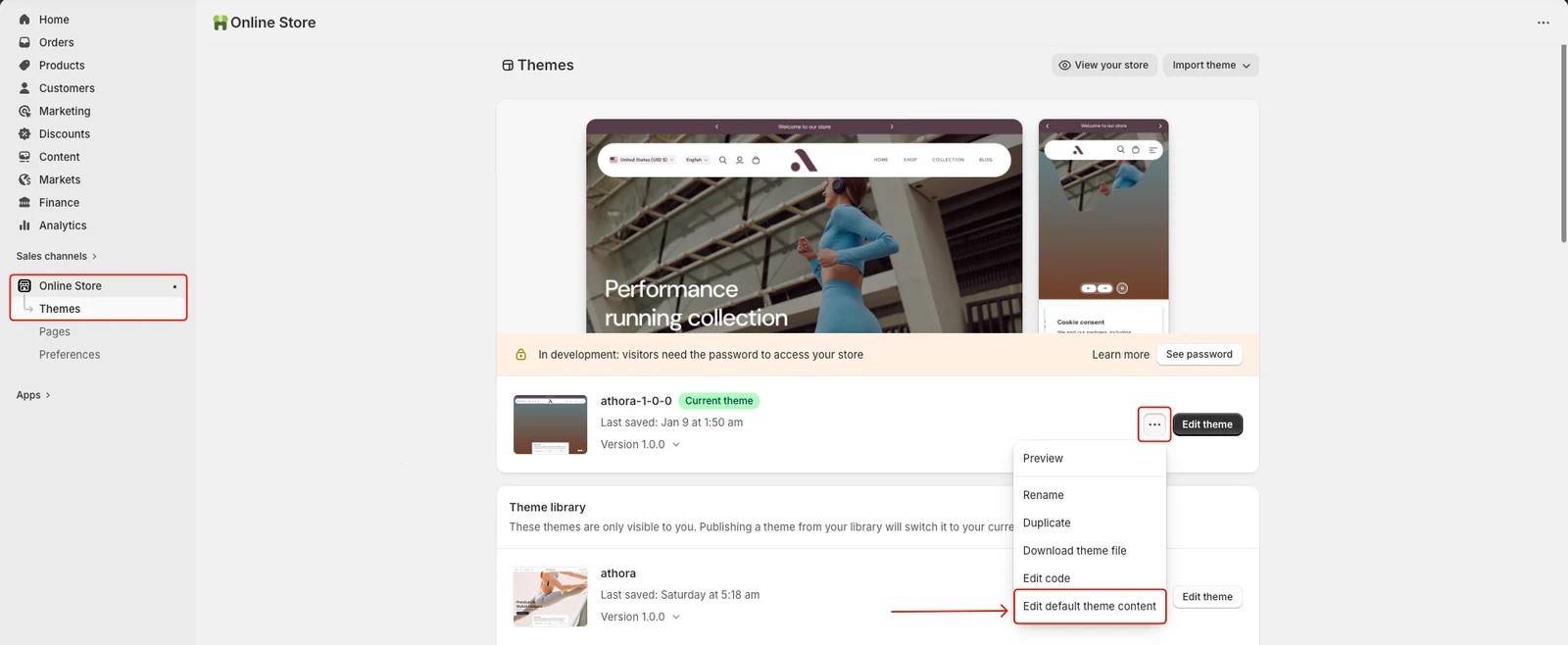
Reference 1. Open Edit default theme content from the theme actions.The4 reference screenshot · Controls and branding may differ in your Zayra release. Select the image to view full size. - Search for the label or message you want to change, edit it, and save.
- For additional languages, configure your published languages in Shopify and use the supported translation workflow or app.
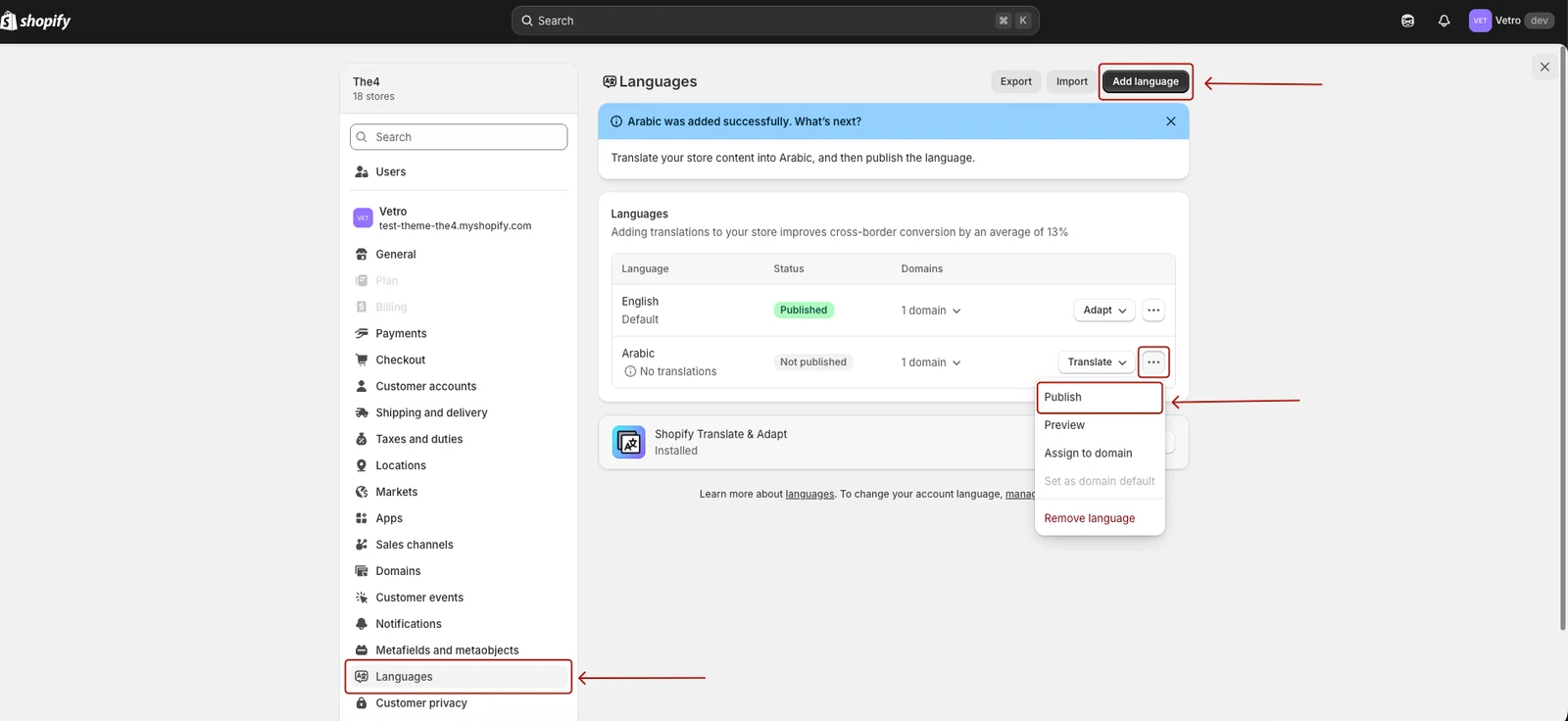
Reference 2. Add an additional storefront language in Shopify.The4 reference screenshot · Controls and branding may differ in your Zayra release. Select the image to view full size. - Translate resource content such as products, collections, pages, menus, and custom section text as well as theme labels.
- Preview each language and test navigation, variants, cart, and checkout wording.
If something looks wrong
- A missing translation message can refer to a key not present in the active locale. Record the exact message, language, and page for support.
- Restore the expected placeholders if a translated sentence no longer displays a product count or amount correctly.
- Changing the theme editor language is separate from translating the customer-facing storefront.
Need a hand with your store?
Contact Inspired Marketing