
Theme settings
Page width & layout
Configure page width, boxed layouts, sidebar behavior, and shared spacing.
Set it up
- Open Layout in Theme settings.
- Choose the page width and enable boxed or sidebar layout only when intended.
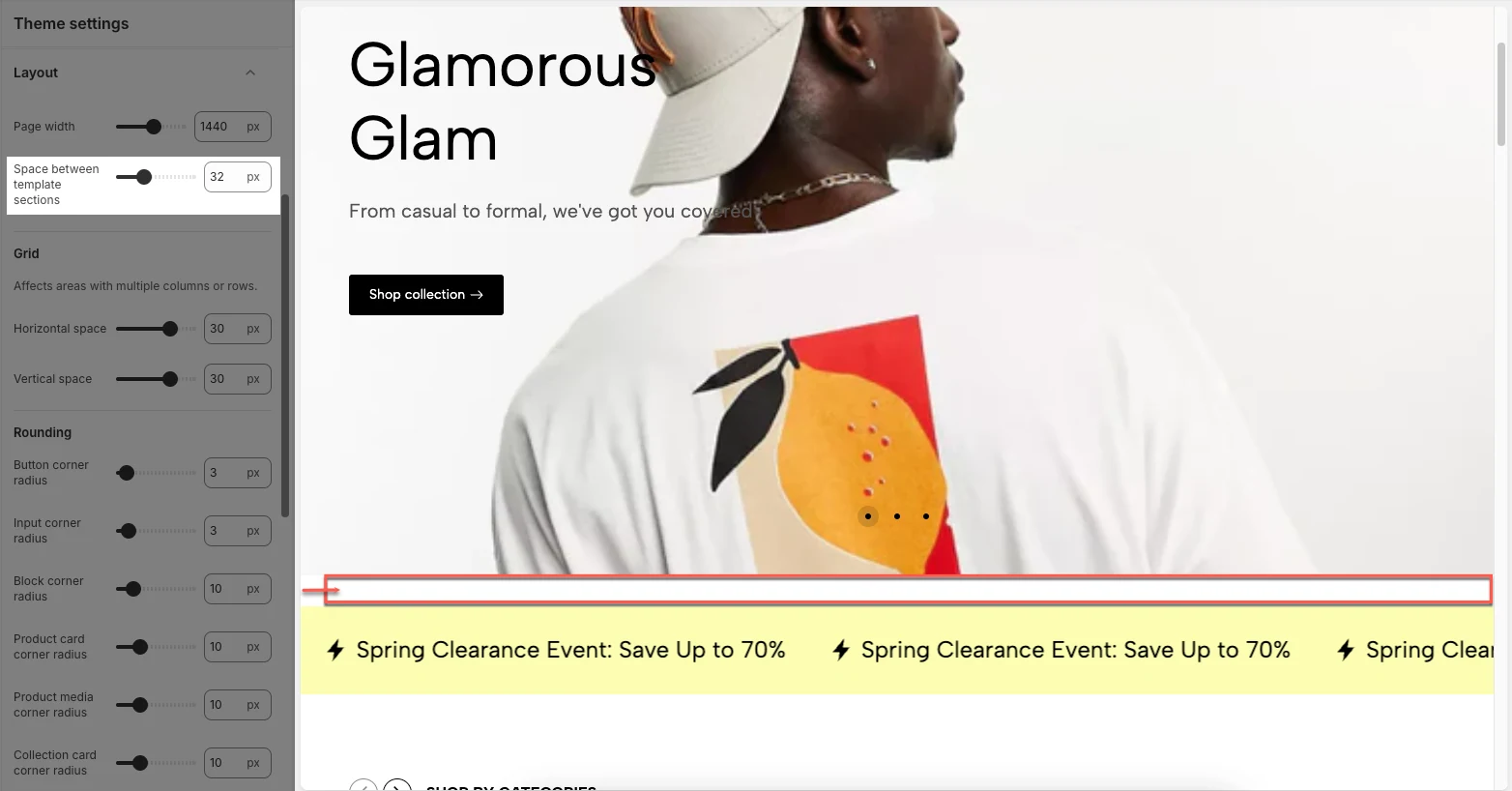
Reference 1. Choose the page width in Layout settings.The4 reference screenshot · Controls and branding may differ in your Zayra release. Select the image to view full size. - Configure the remaining shared layout values using the controls below.
- Save and inspect the homepage, collection grid, product page, and footer.
Check your storefront
- Full-width section options can produce a different result from the global page width.
- Check small screens for horizontal overflow.
Editor controls
Expand a group to see the controls in Zayra 5.4.3. Some options appear only after selecting a related mode or enabling a feature.
Theme settings / Layout19 controls
- Enable sidebar layout
- Turn this option on or off.
- Page width
- Choose a value from 1000 to 1800 px, in steps of 10.
- Enable boxed layout
- Turn this option on or off.
- Space between template sections
- Choose a value from 0 to 100 px, in steps of 4.
- Background image
- Choose an image from your store’s files.
- Background repeat
- Options: No repeat · Repeat · Repeat X · Repeat Y · Space · Round
Shown when its related setting is enabled or selected.
- Background position
- Options: Left top · Left · Left bottom · Right top · Right · Right bottom · Center · Top · Bottom
Shown when its related setting is enabled or selected.
- Background size
- Options: Auto · Cover · Contain
Shown when its related setting is enabled or selected.
- Background attachment
- Options: Scroll · Fixed
Shown when its related setting is enabled or selected.
- Enable sticky footer
- Turn this option on or off.
- Horizontal space
- Choose a value from 4 to 60 px, in steps of 2.
- Vertical space
- Choose a value from 4 to 60 px, in steps of 2.
- Button corner radius
- Choose a value from 0 to 60 px, in steps of 1.
- Input corner radius
- Choose a value from 0 to 40 px, in steps of 1.
- Block corner radius
- Choose a value from 0 to 64 px, in steps of 1.
- Product card corner radius
- Choose a value from 0 to 40 px, in steps of 1.
- Product media corner radius
- Choose a value from 0 to 40 px, in steps of 1.
- Collection card corner radius
- Choose a value from 0 to 40 px, in steps of 1.
- Blog card corner radius
- Choose a value from 0 to 40 px, in steps of 1.
Need a hand with your store?
Contact Inspired Marketing